You connect to a VPN while traveling, then try to log into your bank. The site blocks you — your traffic is coming from a server in another country and the bank's fraud detection flags it as unusual. So you disconnect the VPN, log in, then reconnect. It works, but it is a friction loop you repeat every day.
Split tunneling solves this. It lets you decide which traffic goes through the VPN tunnel and which connects directly, without toggling the VPN on and off each time you hit a service that does not play well with VPN IPs.
What Split Tunneling Actually Does
A standard VPN sends all of your device's internet traffic through the encrypted tunnel. Every browser tab, every app, every background service routes through the VPN server and exits from the VPN server's IP address. That is the default, and it is the right choice for many situations.
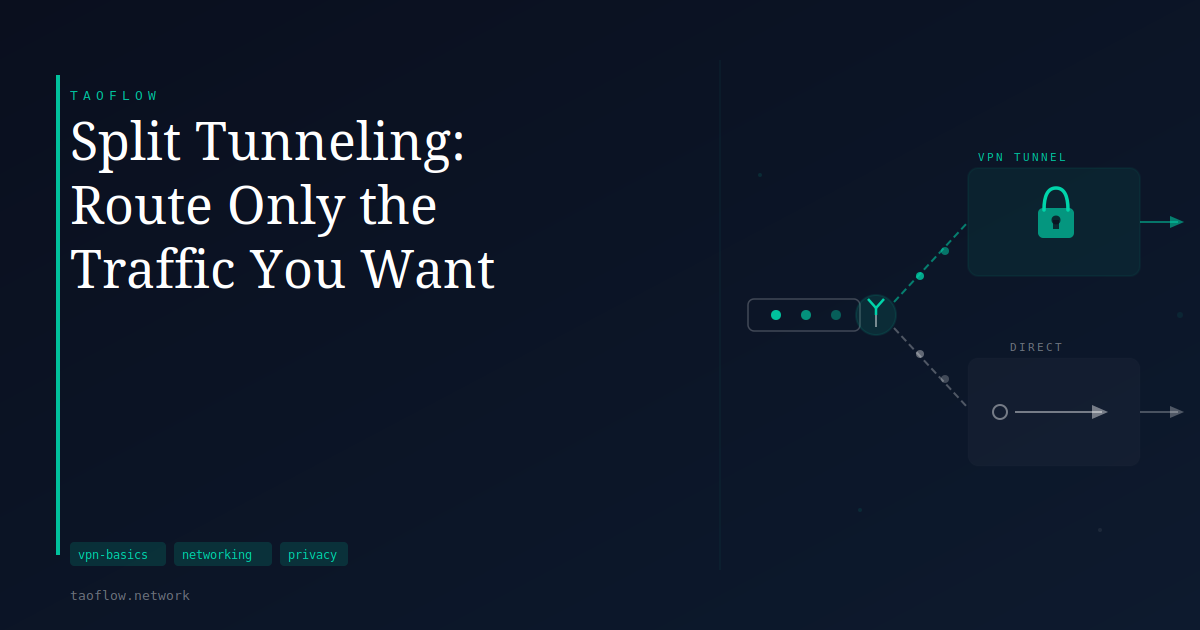
Split tunneling changes this intentionally. You configure which apps or destinations should bypass the tunnel and connect from your real IP, while the rest continues through the VPN. Some clients also let you invert this — send only specific traffic through the tunnel and route everything else normally. Both approaches are called split tunneling.
The result is two simultaneous network paths: one encrypted and exiting from the VPN server's IP, one unencrypted and exiting from your own connection. Both are active at the same time.
How It Works
When you connect to a VPN, the client modifies your device's routing table — the internal list of rules that determines which network interface each outgoing packet uses. A full-tunnel VPN adds a catch-all default route that sends everything to the VPN interface. A split-tunnel configuration adds more specific routes so that only selected destinations or applications take that path; everything else follows the normal route.
Most VPN clients expose split tunneling through a straightforward interface: a list of apps or domain names to include or exclude from the tunnel. The client manages the routing changes automatically in the background. With WireGuard specifically, split tunneling is controlled directly in the peer configuration via the AllowedIPs field — the set of IP ranges whose traffic enters the tunnel. Setting AllowedIPs = 0.0.0.0/0 routes all traffic through the VPN; specifying narrower ranges implements split tunneling at the protocol level without requiring any additional client software.
When Split Tunneling Helps
Work VPN alongside personal browsing. If you use a corporate VPN to reach internal systems, sending your personal browsing through it as well is unnecessary — and on many corporate networks, it means your employer's IT infrastructure carries traffic they have no reason to see. Split tunneling lets you route only the internal resources through the work VPN while keeping everything else on your normal connection.
Location-sensitive services. Banks, local government portals, and some subscription platforms verify that your IP address is in an expected region. A VPN server in a different city or country can trigger fraud alerts or service blocks. Routing those specific connections outside the tunnel keeps them working without disrupting the rest of your protected traffic.
Real-time applications. VPN routing adds latency — your packet travels to the VPN server before reaching its destination. For video calls or online applications where responsiveness matters, exempting those from the tunnel can help without giving up protection elsewhere.
Local network access. Some VPN configurations block access to devices on your home network, such as printers or network-attached storage. Routing local address ranges — typically 192.168.x.x — outside the tunnel keeps those devices reachable while the VPN stays connected.
The Trade-offs
Any traffic that bypasses the tunnel is visible to your ISP as usual and exits from your real IP address. If your goal is to prevent your ISP from reading your browsing history or seeing which services you use, only the tunneled portion is protected. Anything routed directly is not.
Configuration risk is worth considering. A rule that accidentally excludes sensitive traffic from the tunnel could expose it without you realizing it. For users who want a simple, reliable guarantee — all traffic protected, no list to maintain — full-tunnel mode is easier to reason about and leaves less room for error.
DNS requests also matter. If DNS queries for split-excluded traffic resolve through your ISP's DNS server as usual, the domain names you look up are visible to your ISP even if the connection content is not. Check whether your VPN client handles DNS consistently for both tunneled and non-tunneled traffic.
What This Means for You
Split tunneling is most useful when you have specific, well-understood reasons to route certain traffic outside the VPN — a service that blocks VPN IPs, a latency-sensitive application, or traffic you simply do not need protected. If you are using a VPN primarily to keep browsing private from your ISP, be deliberate about exceptions: each one is traffic your ISP can see normally.
Most VPN clients expose split tunneling in their settings as a list of apps or domains. If you are configuring WireGuard manually, the AllowedIPs value in your peer config is where this is controlled — set it to cover only the IP ranges you want inside the tunnel.
Start with the full-tunnel default. Add exceptions only when you have a clear reason, and keep the list short enough that you can review it at a glance.