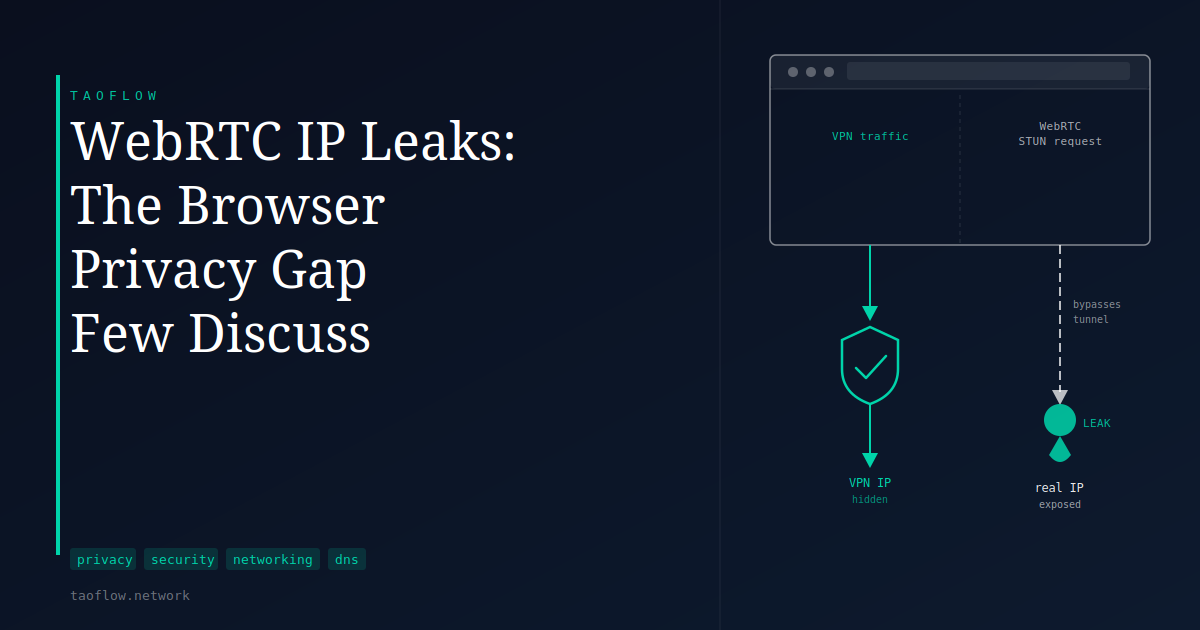
You connect to your VPN, check that your visible IP address has changed, and continue browsing. Traffic is encrypted, the destination sees a different address — the VPN is doing its job. But if your browser is running WebRTC, it may be quietly sending your real IP address to websites anyway, through a channel that your VPN isn't watching.
This isn't an obscure corner case. WebRTC IP leaks are a known behavior of how browsers handle real-time communication, and they affect users across most major desktop browsers.
What WebRTC Is
WebRTC — Web Real-Time Communication — is a browser technology that enables direct connections between users without a plugin or server in the middle. It's what makes browser-based video calls, peer-to-peer file sharing, and live collaboration tools work. Google Meet, Discord's web client, and many similar services rely on it.
To set up these direct connections, the browser needs to figure out your network addresses. It collects what are called ICE candidates: a list of IP addresses and ports that another party can use to reach you. Part of this process involves querying external STUN servers (Session Traversal Utilities for NAT) to discover the public IP address your traffic exits from.
This is where the leak occurs.
How the Leak Happens
When a webpage triggers WebRTC, the browser sends a STUN request to a public server — often one run by Google or similar providers. That request can travel over your local network interface, bypassing the VPN tunnel entirely. The STUN server sees your real IP address — the one assigned by your ISP — and replies with it.
The browser's WebRTC API then makes that IP address readable by JavaScript on the page. The result is that a website can learn your actual IP even while all your regular HTTP traffic flows through the VPN.
This is a side-channel leak, not a flaw in the VPN itself. The VPN tunnel is intact. The browser is opening a separate path and exposing information through it.
It's conceptually similar to a DNS leak, where DNS queries escape the tunnel and reach your ISP's resolver. A WebRTC leak uses a different mechanism — the browser's real-time communication stack — but the outcome is the same: your actual IP becomes visible to websites that look for it.
Which Browsers and Devices Are Affected
WebRTC is enabled by default in Chrome, Firefox, Edge, and Brave on desktop. The behavior of WebRTC's IP candidate gathering differs by browser, but all of these can expose local or public IP addresses to JavaScript in some configurations.
Safari handles ICE candidate gathering more conservatively. Its implementation limits which addresses are exposed, reducing (but not eliminating) the risk on Apple devices.
Mobile browsers have more restricted access to network interface information than desktop browsers, which limits the exposure. But the underlying capability is still present, depending on the browser and platform.
The leak is independent of which VPN protocol you are using. WireGuard, OpenVPN, or any other tunnel does not matter here — the browser is what matters.
How to Check Whether You Are Affected
Before changing anything, test your current setup. Search for a WebRTC leak test and use a reputable tool to run the check. A good test will show your VPN IP and any additional IPs the browser exposes. If only the VPN address appears, your setup is either not leaking or your browser handles this conservatively already.
If the test shows your ISP-assigned IP alongside the VPN address, there is a real leak to address.
What You Can Do About It
Disable WebRTC in Firefox. In Firefox, navigate to about:config and set media.peerconnection.enabled to false. This completely disables WebRTC, which means browser-based video calls will no longer work. If you rely on those, this option trades privacy for functionality.
Use a privacy-focused browser extension. Several extensions intercept the WebRTC API and restrict which addresses are shared with web pages. These typically block the local network interfaces while allowing WebRTC to function. The trade-off is that you are relying on an extension to correctly limit browser behavior.
Brave's built-in setting. Brave includes a WebRTC IP handling option in its privacy settings that restricts IP exposure without disabling the feature entirely. If you are already using Brave, this is the simplest option to check.
VPN client-level routing. Some VPN clients apply firewall rules that ensure all traffic, including WebRTC STUN requests, travels through the tunnel. Check whether your VPN client documents this protection explicitly — broad claims about blocking leaks are not always specific enough to confirm WebRTC coverage.
What This Means for You
If your goal is to keep your IP address hidden from the websites you visit, a WebRTC leak undermines that on desktop. The VPN tunnel is still protecting your traffic content from your ISP. But sites using WebRTC can access your real IP regardless of what address your HTTP requests appear to come from.
How much this matters depends on your situation. For users who want to avoid routine web tracking, it is a real gap worth closing. For users who require stronger privacy protections — due to the nature of their work or environment — it is worth treating as a gap rather than a footnote.
The good news is that testing takes under a minute, and most fixes are straightforward. If your test shows no leak, you do not need to do anything. If it does show your real IP, the options above are practical to implement without giving up browser functionality entirely.
WebRTC is a useful technology with a specific privacy trade-off in its design. Knowing about the trade-off puts you in a position to decide how to handle it.